
Format Your First Citation#
Format Your First Citation#
In this tutorial you will look up a paper by its DOI and get a properly formatted citation you can paste into your document.
What You Need#
A web browser
A DOI (we will use
10.1038/187493a0– Maiman’s 1960 laser paper)
Steps#
1. Open the App#
Go to ookcite.turtletech.us/app.
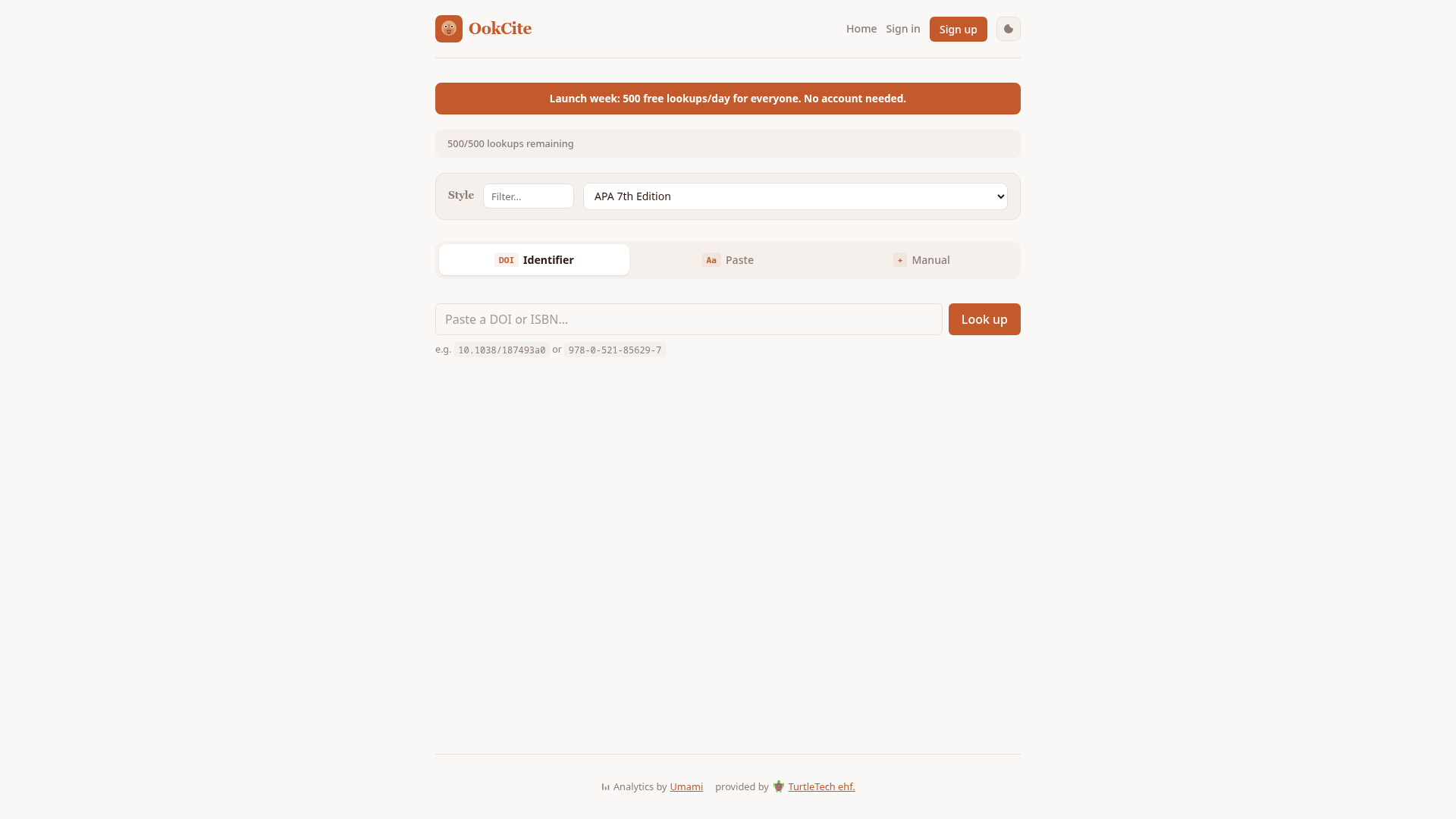
You will see the OokCite interface with three tabs: Identifier, Paste, and Manual.
2. Choose a Style#
The style picker is at the top. By default it is set to APA 7th Edition. Click the dropdown to choose a different style if needed.
If you are unsure which style to use, check your journal’s author guidelines. Common choices:
Humanities: Chicago or MLA
Sciences: APA or Nature
Engineering: IEEE
Medicine: Vancouver or AMA
3. Enter the DOI#
The Identifier tab is already selected. Type or paste the DOI into the input field:
10.1038/187493a0
Click Look up or press Enter.
4. Copy the Result#
After a moment, you will see two things:
An in-text citation badge:
(Maiman, 1960)for APAThe full bibliography entry below it
You have four copy options:
Copy text: plain text for pasting anywhere
Copy formatted: rich text that preserves italics (for Word or Google Docs)
BibTeX: for LaTeX users
Edit: switch to manual entry to correct any details
5. Try a Different Style#
Change the style dropdown to IEEE. The citation re-formats instantly:
In-text changes to
[1]Bibliography entry changes to IEEE format with volume, pages, month
No additional lookup is consumed – re-formatting is always free.
What You Learned#
How to look up a citation by DOI
How to choose a citation style
How to copy the formatted result
That re-formatting is free (no rate limit consumed)
Next Steps#
Format a batch reference list – format many citations at once
Word workflow – paste citations into Word with formatting